Ellucian Data Connect is designed to support integrations that move and transform data between systems. Framework v3.1 is version 3.1 of Ellucian’s extensibility framework for Data Connect pre-built integrations. It provides reusable pipeline and sub-pipeline patterns, together with defined extension points for integration-specific behavior.
The framework provides reusable baseline behavior for common integration concerns, so each integration does not have to recreate the same parameter validation, credential handling, output logic, and other shared mechanics from scratch. Integration-specific rules can then be added where the individual integration requires them.
The Framework v3.1 terminology, baseline structure, and extension points used in this article come from Ellucian’s authenticated Data Connect documentation for customers and partners. This documentation is not publicly accessible or searchable, which is why there is no public Framework v3.1 source link we can reference here. Framework v3.1 is one revision of this evolving framework.
The examples in this series use v3.1 as the reference baseline, so the sub-pipeline structure, context variables, and extension points shown below are specific to this version. If you are working with another framework revision, verify the corresponding implementation details before applying the pattern.
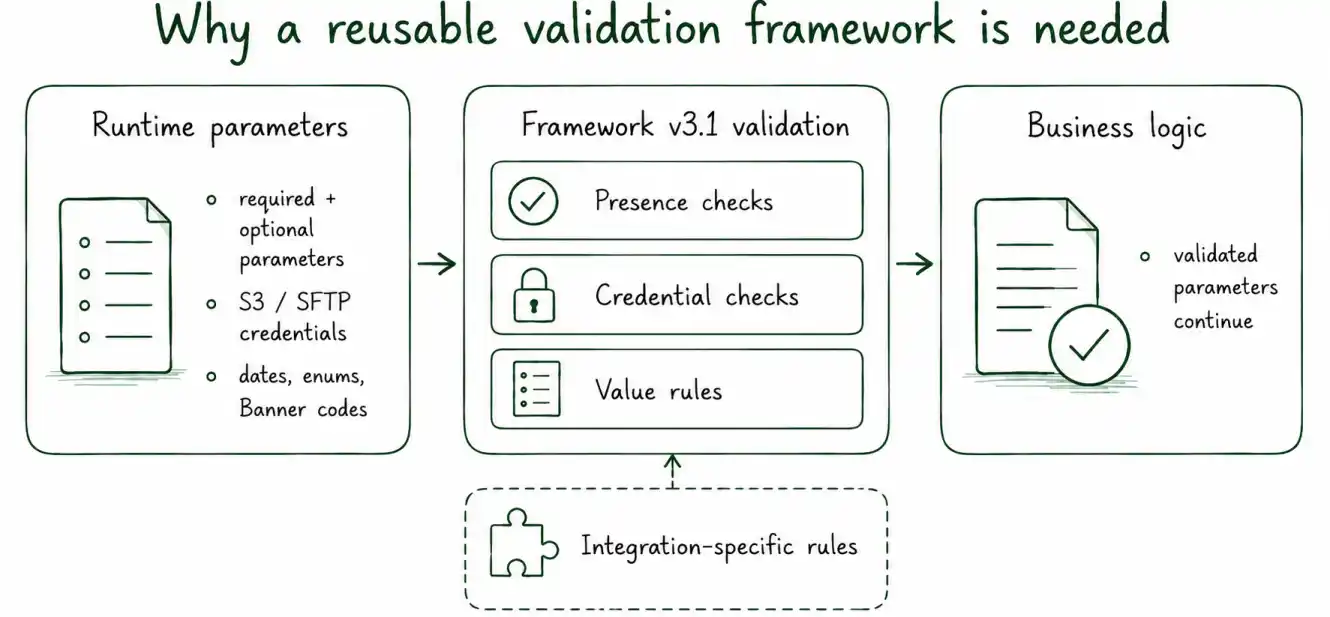
One of the first responsibilities of this baseline is to stop invalid runtime input before business processing begins. A Data Connect pipeline can receive required and optional parameters for business logic, file access, and output delivery. A value may be missing, empty, syntactically invalid, unsupported by the integration, or valid in format but invalid for the institution.
Framework v3.1 handles these cases in separate stages. It checks whether required values are present, validates credentials required by the selected file options, applies integration-specific value rules, and only then normalizes accepted values for later SQL and JavaScript processing. This post explains how that sequence works through validationParameters[], valueValidationParameters[], and the related validation sub-pipelines.
It is part of our Ellucian Data Connect tips and implementation patterns series, where it appears under the Framework v3.1 validation and output workflows section.
The validation sequence
A typical Framework v3.1 integration performs the following steps before its business logic:
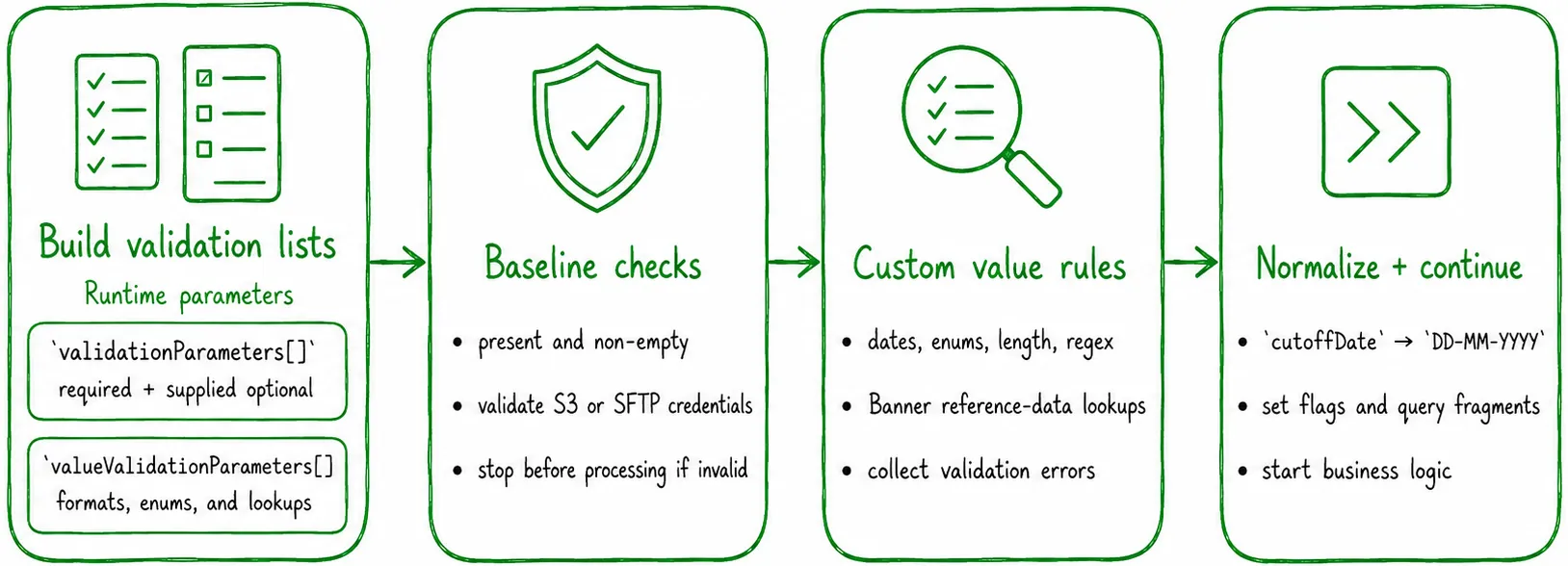
- Build the presence-validation and value-validation arrays.
- Run the Ellucian baseline presence check.
- Validate SFTP or S3 credentials for the selected file options.
- Run the integration-specific value-validation sub-pipeline.
- Normalize the validated parameters for SQL and later JavaScript steps.
Step 1. Build the validation arrays
The baseline setup step creates two context arrays. validationParameters[] identifies parameters that must exist and contain a value. valueValidationParameters[] identifies parameters that require semantic validation.
Build the two parameter arrays
'includeEmployeeClass', 'includeBenefitCategory',
'excludeHomeOrgCode', 'jobChangeReasonCode',
'terminationReasonCode',
];
const validateParam = [
'jobTerminationCode', 'cutoffDate',
'referenceNumber', 'auditMode',
…optionalParams.filter(p =>
context[p] !== undefined)
];
const valueValidateParam = [
'jobTerminationCode', 'cutoffDate',
…optionalParams, 'auditMode',
];
Store the validation state in context
context.set('valueValidationParameters', valueValidateParam);
context.set('parameterValidationExists', true);
context.set('gwPZPAMTJValidation', true);
Required parameters are always placed in validationParameters[]. An optional parameter is added only when the caller supplied it. The context[p] !== undefined condition means that an explicitly supplied but empty optional parameter can still be rejected by the baseline presence check.
The same parameter can participate in both phases. For example, jobChangeReasonCode can be checked for a supplied value and then checked against Banner reference data. Presence validation and Banner lookup validation answer different questions and should remain separate.
Step 2. Run the baseline presence check
The Ellucian Extensibility Baseline Validation sub-pipeline reads validationParameters[]. It verifies that every listed parameter exists and is non-empty. If a required value is missing, the run stops before any business records are processed.
This is baseline Framework behavior. The integration defines the parameter list, but it does not need to modify the baseline sub-pipeline.
Step 3. Validate file credentials
The next baseline sub-pipeline validates credentials according to fileReadingOption and fileSharingOption. The required values depend on whether the run reads or sends files through S3, SFTP with a password, SFTP with a private key, or a combination of destinations.
For example, an SFTP private-key configuration requires the appropriate host name, user name, and key parameters. The pipeline should reject an incomplete configuration before it reaches a file operation. The available output and delivery settings are covered in How to configure output files in Ellucian Data Connect Framework v3.1.
Step 4. Apply integration-specific value rules
The custom value-validation sub-pipeline reads valueValidationParameters[] and applies the rules needed by the current integration. These rules can include:
- date and date-time formats;
- allowed enum values;
- string length limits;
- regular-expression checks;
- codes that must exist in Banner reference data.
An integration-specific flag such as gwPZPAMTJValidation identifies the relevant validation branch. Optional parameters can remain in valueValidationParameters[] because the custom flow can check whether a value was actually supplied before running its rule or lookup.
Reference-data validation requires a separate lookup flow because a local JavaScript check cannot confirm that a code exists in Banner. The full pattern is described in How to validate Data Connect parameters against Banner reference data.
Step 5. Normalize validated values
After validation succeeds, the pipeline can convert parameters into the forms needed by Oracle SQL and later JavaScript steps. In this example, cutoffDate becomes DD-MM-YYYY, the termination mode becomes two Boolean flags, and an optional limit becomes a query-string fragment.
const day = String(d.getUTCDate()).padStart(2, '0');
const month = String(d.getUTCMonth() + 1).padStart(2, '0');
const cutoffDateStr = <code>${day}-${month}-${d.getUTCFullYear()}</code>;
context.set('cutoffDateStr', cutoffDateStr);
const code = context.get('jobTerminationCode')
.trim().toUpperCase();
context.set('terminateJobsFlag', code === 'J');
context.set('terminateEmployeeFlag', code === 'E');
const limit = Number(context.limit);
context.set(
'limitParamStr',
(!isNaN(limit) && limit > 0)
? <code>&limit=${limit}</code>
: ''
);
Normalizing after validation keeps the checks aligned with the original runtime input and gives the business logic a consistent set of prepared values.
Key implementation details
- Use validationParameters[] for presence and non-empty checks.
- Use valueValidationParameters[] for format, enum, length, regex, and reference-data rules.
- Conditionally include optional parameters in presence validation when the caller supplied them.
- Keep baseline sub-pipelines unchanged; place integration-specific rules in the custom sub-pipeline.
- Normalize parameter values only after all validation stages succeed.
Related posts
- How to validate Data Connect parameters against Banner reference data
- How to configure output files in Ellucian Data Connect Framework v3.1
Need help with Data Connect parameter validation?
ABCloudz helps institutions design and troubleshoot Ellucian Data Connect pipelines, including baseline validation, custom validation rules, Banner lookups, credential checks, error handling, and output workflows.