Producing the correct data is only part of an Ellucian Data Connect integration. The result also has to reach the receiving system in the format that system expects. A report, audit, or error file may require a specific delimiter, extension, header row, filename, or delivery destination.
When multiple integrations need the same kinds of output behavior, implementing all of that independently in every pipeline creates duplicated file-handling logic. The integration needs a reusable way to control how output is formatted and where it is delivered without rebuilding the same mechanics for every use case.
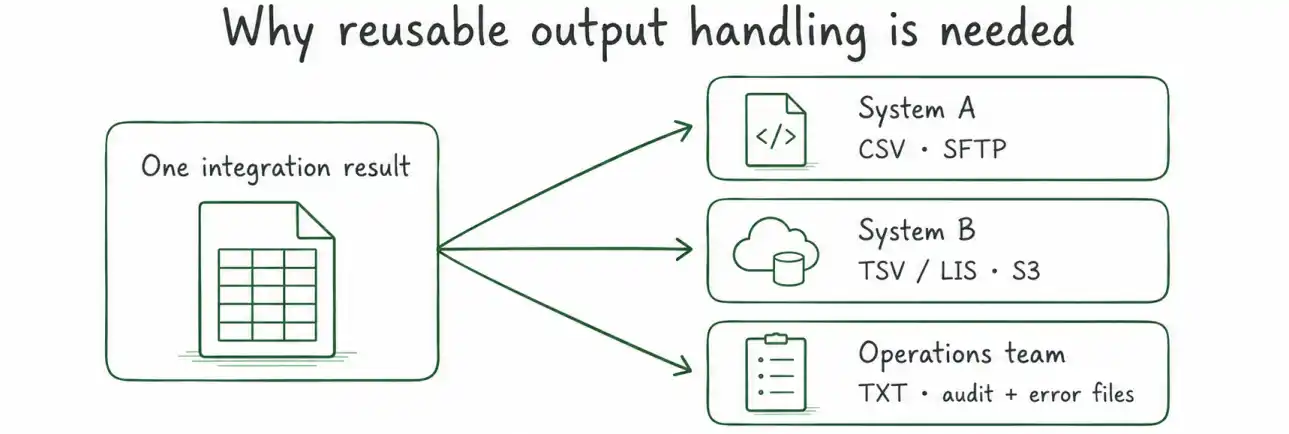
Framework v3.1 is Ellucian’s versioned extensibility framework for Data Connect pre-built integrations. Its reusable pipeline patterns allow common file-handling behavior to remain in the baseline while integration-specific processing is added where needed. The framework terminology and implementation structure referenced in this article come from Ellucian’s authenticated Data Connect documentation for customers and partners, which is not publicly accessible or searchable.
Runtime settings define how the files should be produced, an optional custom transform can reshape integration-specific data, baseline formatting builds the final file content, and the baseline delivery flow sends it to the configured destination. The same pattern can be reused for report, audit, and error outputs.
This post explains how to configure that behavior through the extendedParameters JSON string, build the filename and file content in JS – Format Data, preserve logs while message.payload changes, and deliver the completed files to S3 or SFTP through the baseline delivery sub-pipeline.
It is part of our Ellucian Data Connect tips and implementation patterns series, where it appears under the Framework v3.1 validation and output workflows section.
File generation takes place after the pipeline has validated its runtime parameters and completed its main processing. The sequence below shows how Framework v3.1 moves from runtime output settings to the final files delivered to the receiving system.
The output-file sequence
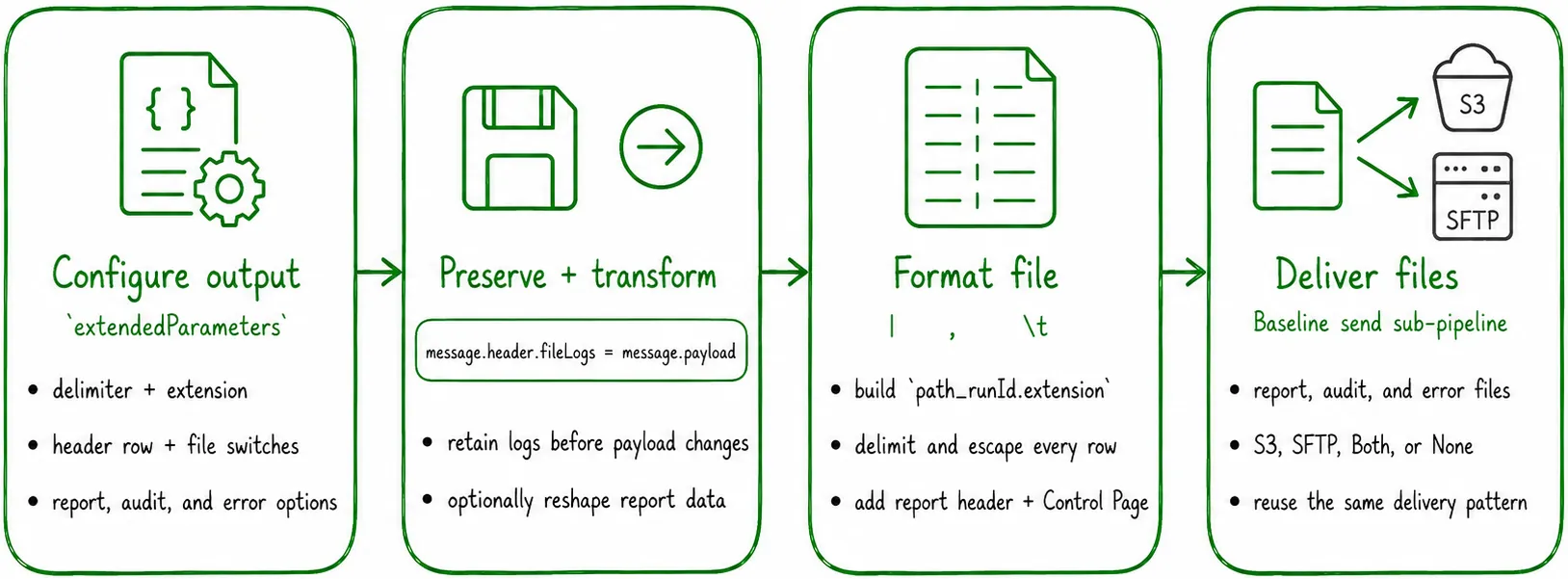
- Parse output settings from extendedParameters into context variables.
- Preserve report, audit, and error logs before later steps replace the payload.
- Optionally reshape the report data through a custom transform.
- Build the filename and file content with the configured format.
- Send the file through the baseline S3 or SFTP delivery sub-pipeline.
Step 1. Configure `extendedParameters`
extendedParameters is passed to the pipeline as a JSON string. An Ellucian baseline sub-pipeline parses it before the custom JavaScript steps run. Its fields then become context variables such as context.reportFileDelimiter, context.reportFileExtension, and context.sendAuditFile.
"sendAuditFile": true,
"sendErrorFile": true,
"noFile": false,
"overwriteInputFileHeaders": true,
"reportFileDelimiter": "\t",
"reportFileExtension": "lis",
"reportFileWithHeaders": true,
"auditTrail": false
}
| Field | Default | Effect |
| sendAuditFile | true | Send the audit file after the run. |
| sendErrorFile | true | Send the error file after the run. |
| noFile | false | Skip all file output when set to true. |
| overwriteInputFileHeaders | true | Use headers defined by the pipeline instead of input-file headers. |
| reportFileDelimiter | \t | Set the separator used in the report body. |
| reportFileExtension | lis | Set the extension appended to the report filename. |
| reportFileWithHeaders | true | Include the column-name row in the report body. |
| auditTrail | false | Include the detailed step-by-step audit when enabled. |
Step 2. Choose the delimiter and extension
reportFileDelimiter controls the separator in the tabular body. reportFileExtension controls the suffix used in the generated filename. They are separate settings, so the selected combination should match the receiving system’s requirements.
| Value | Separator | Typical extension | Common use |
| “\t” | Tab | lis or tsv | Banner-style reports and tabular exports. |
| “,” | Comma | csv | Standard CSV data exchange. |
| “|” | Pipe | txt | ETL files whose values may contain commas. |
| “;” | Semicolon | csv | CSV consumed in semicolon-based locales. |
| ” “ | Space | lis | Fixed-width-style output with padded values. |
Step 3. Build the filename and report body
The JS – Format Data step reads the extension, delimiter, report path, and reportLog from context and payload. The filename combines the final segment of reportFilePath, the Data Connect run ID, and the configured extension.
The focused excerpts below isolate delimiter and extension handling. The complete baseline step also adds the Banner-style report header and the Control Page described in the next section.
Build the filename and handle an empty result
const fieldSeparator = context.reportFileDelimiter;
const formatData = message.payload?.reportLog ?? [];
const path = context.reportFilePath.split('/');
const filename =
<code>${path[path.length - 1]}_</code> +
<code>${context.__runId}.${extension}</code>;
if (formatData.length === 0) {
context.existReport = false;
message.payload = {
sendFileName: filename,
fileContent: ''
};
return message;
}
When report data exists, the step creates a header list, optionally writes the column-name row, escapes values that require quoting, and joins each row with the configured separator.
Build the delimited body
const headers = Object.keys(formatData[0]);
const reportFile = [];
if (context.reportFileWithHeaders) {
reportFile.push(headers.join(fieldSeparator));
}
formatData.forEach(row => {
const values = headers.map(header => {
const value = row[header] ?? '';
const quote =
typeof value === 'string' &&
(
value.includes(fieldSeparator) ||
value.includes('"') ||
value.includes('\n')
);
<pre><code> return quote
? `"${value.replace(/"/g, '""')}"`
: value;
});
reportFile.push(values.join(fieldSeparator));</code></pre>
});
message.payload = {
sendFileName: filename,
fileContent: reportFile.join('\n')
};
The escaping rule checks the configured separator rather than assuming a comma-delimited file. Values containing the active separator, a double quote, or a newline are wrapped in quotes, and embedded quotes are doubled.
Step 4. Add the report header and Control Page
When a report is generated, the baseline formatter surrounds the tabular body with a Banner-style header and a Control Page. The header contains report metadata such as REPORT, DATE, and DATABASE. The Control Page records the parameters used for the current run.
This baseline behavior provides an execution record comparable to the report information previously produced through Oracle SQLIncBeforeJob and SQLIncControlPage logic. The integration does not need to rebuild it for every output file.
Step 5. Preserve logs and send the files
File-processing steps replace message.payload, so the original report, audit, and error arrays are first parked in the header:
The report then follows four stages:
- Persist the processed logs in message.header.fileLogs.
- Run the optional Transform Report File sub-pipeline when dataTransformMethod is custom. The extensible step is skipped when the baseline method is selected and no custom implementation exists.
- Run JS – Format Data to create the header, delimited body, Control Page, filename, and fileContent. The step also sets context.existReport according to whether report data exists.
- Run the baseline Send Report File sub-pipeline to deliver payload.fileContent to the configured destination.
The same baseline delivery sub-pipeline can be reused for report, audit, and error files. File creation can be disabled entirely with noFile, while sendAuditFile and sendErrorFile control the optional outputs.
Configure the delivery destination
fileSharingOption determines where the completed files are sent:
- S3 for Amazon S3 delivery;
- SFTP_Pass for SFTP password authentication;
- SFTP_Key for SFTP private-key authentication;
- Both for combined S3 and SFTP delivery;
- None when no destination should be used.
The output paths are supplied separately through reportFilePath, auditFilePath, and errorFilePath. The baseline delivery step reads the selected option and corresponding credentials from context.
Framework v3.1 validates fileSharingOption and the required credentials before the business logic runs. That validation sequence is described in How to validate parameters in Ellucian Data Connect Framework v3.1. Pipelines that also accept Banner-backed codes can apply the lookup pattern from How to validate Data Connect parameters against Banner reference data.
Key implementation details
- Pass extendedParameters as a JSON string and let the baseline sub-pipeline expose its fields through context.
- Match the delimiter, extension, and header-row behavior to the receiving system.
- Escape values against the active delimiter rather than a hard-coded comma.
- Preserve report, audit, and error logs in message.header before file steps replace the payload.
- Use the extensible transform only when the report data requires integration-specific reshaping.
- Keep the baseline formatting and delivery sub-pipelines responsible for reusable file behavior.
Related posts
- How to validate parameters in Ellucian Data Connect Framework v3.1
- How to validate Data Connect parameters against Banner reference data
Need help with Data Connect output files?
ABCloudz helps institutions configure report, audit, and error files, implement custom data transforms, deliver output through S3 or SFTP, validate credentials, and troubleshoot Ellucian Data Connect Framework v3.1 pipelines.